Usage of Vaadineo (short introduction for the available menu’s)
start menu
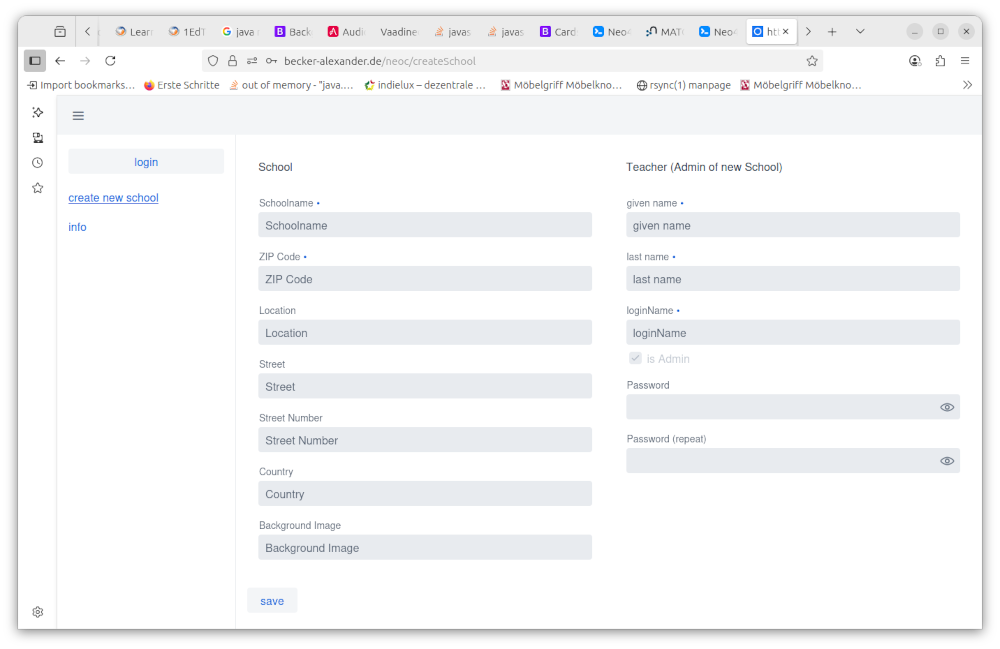 - Create a school (institution) with an admin teacher (lecturer)
teacher menu
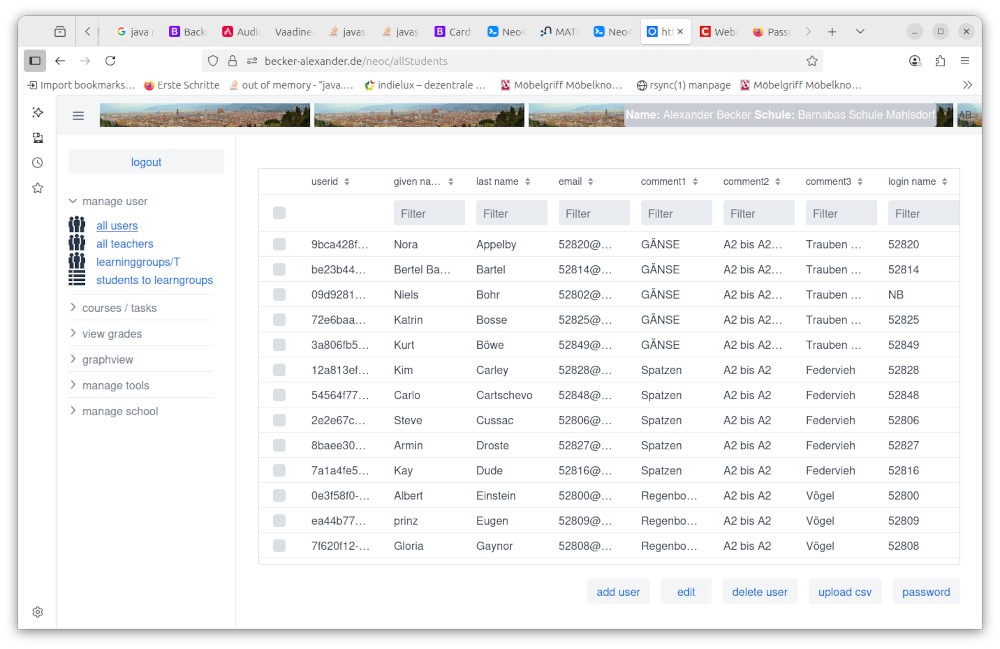
-
Create teacher, both admin and non admin teacher
-
you can create students or import students via a csv file
-
Create learninggroups. These learninggroups group students for courses
-
assign teacher to learninggroups
-
assign student to learninggroups
-
Create courses (a course has a start and end date)
-
Create tools for LTI deeplinking and LTI launches via UI or with dynamic Registration (as a BETA)
-
Create tasks in courses (url and LTI Launch, import Thin Common Cartridges )
-
see grades for a course
student menu
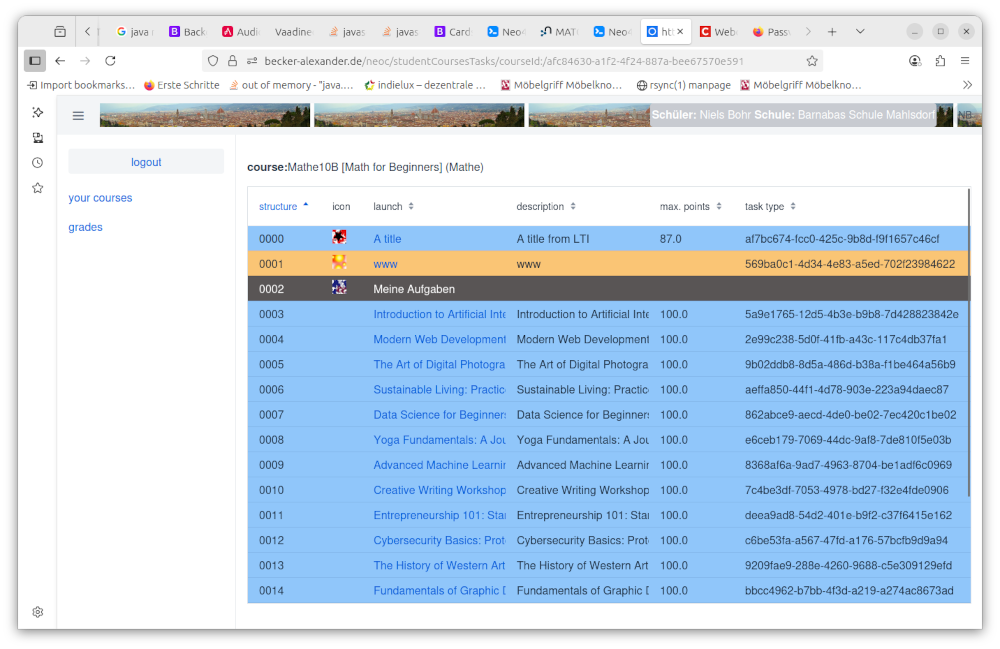
-
see all my courses
-
goto a couse and launch tasks
-
see the grades for my tasks
login as teacher and as student
getting started (create a course and use the course)
This section describes the steps to offer a course with tasks. The easiest way to create from scratch is to follow the steps in the described order.
create a new school with an admin teacher
describe the school(institution) and create the first teacher(lecturer) in a single step.
login with the admin teacher
you get the teacher menu to make the things happens. create students, teacher , learninggroups … see the following steps.
create students
You can create a student in the UI or you can upload a csv file with following structure
Structure of csv file is
firstName;lastName;comment1;comment2;comment3;email;loginName
Lines starting with # will be ignored
Email has to be unique and LoginName has to be unique
comment fields can be used later to select students
A new created Student has the password 12345. You should change this as quick as possible. (see student view Button change password)
create other teacher (optional)
You can create other teacher with and without admin rights. Teacher without have limited access and also limited rights to change things. Teacher with admin rights have unlimited access and can change every thing, including the deletion of the school.
create learning groups (classes etc)
You can create learninggroups in the UI. You need a learning group, before you create a course.
Assign Teacher to learninggroups
The teacher, who creates a learninggroup is assigned to that learninggroup. A learninggroup needs always 1 assigned teacher, but you can assign more then one teacher to a learninggroup. The assigned teacher of a learninggroup or a admin teacher can assign other teachers to a learninggroup. Therefor must be the learninggroup selected in the learninggroup view (in the table).
hint: grid means the table in the view.
Assigned teacher can create courses for this learninggroup, fill the courses with tasks and can view grades of the tasks of their courses.
Admin Teachers have access to all learninggroups, courses, tasks and grades.
assign students to a learninggroup
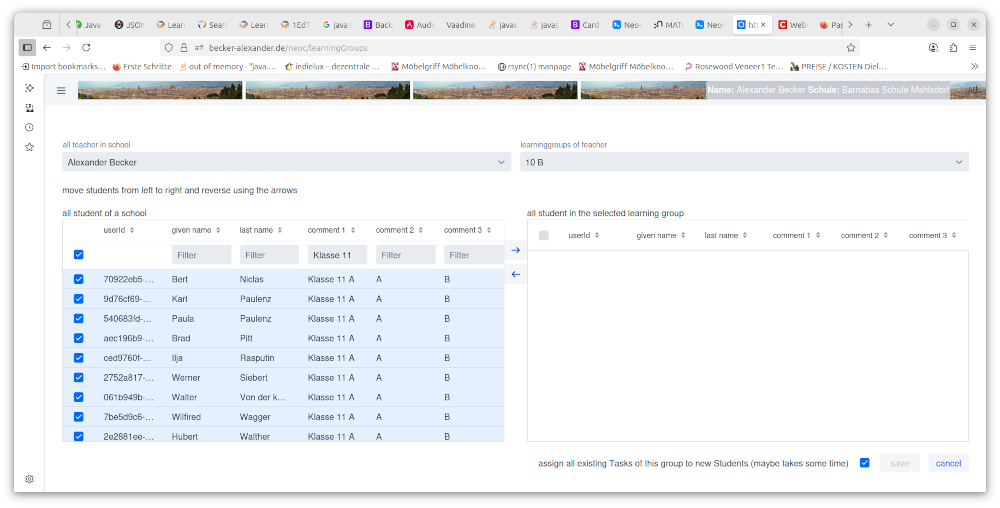
You can assign students to a learninggroup in the UI. You have to select the students in the left table by clicking the checkboxes or you can use comments to filter the students with parts of comments as filter value and then check all checkboxes with the checkbox in the header of the table. You have to move the selected students with the arrow button to the right table and save your work. If you want to remove a assignment to a learningroup, you can select assigned students and press the "to the left arrow button" and save the result. If you have already tasks in courses, Vaadineo creates or removes assignments for all tasks for all courses of the leaarninggroup for the change in student assignment. Remove a assignment will be always done. Create a assignment will be only done, if the checkbox "assign" ist checked. (see under the tables in the assign dialog)
Only a teacher assigned to the learninggroup can change the assignments. Admin teacher are also able to change assignments.
LTI Tool creation
create a LTI Tool (separate menu on the left)
This has to be done, before you want to insert LTI Lauches into your course. You can create a tool in the UI (create Tool). You need a lot of information of the Tool. Tools in general provided by publishing companies or other edtech provider. The second option is, to use dynamic registration to establish the connection between tool and platform.
The following image shows a general LTI Launch as sequence diagram.
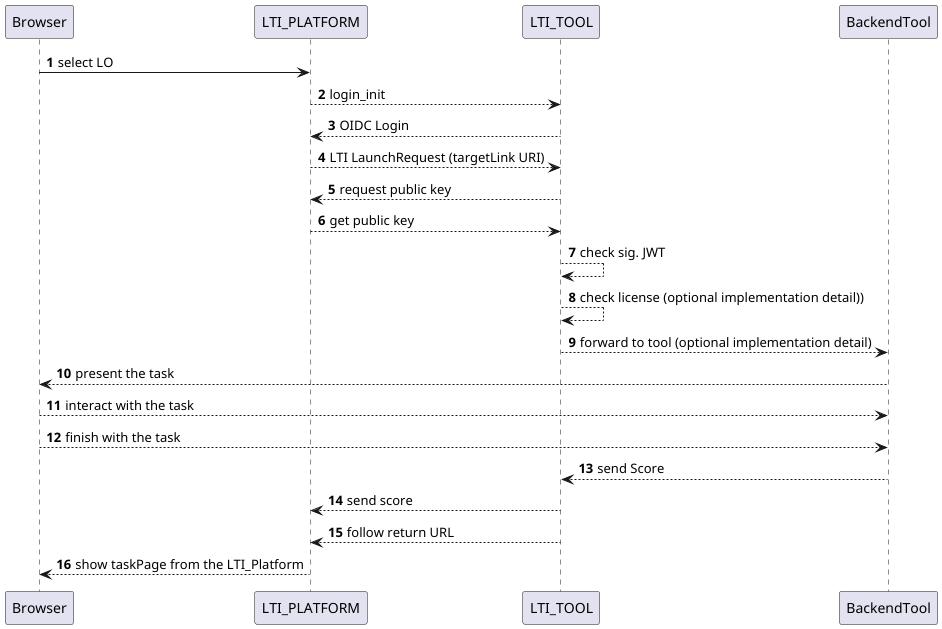
Vaadineo acts as LTI Platform. The tool can be every LTI 1.3 advantage conform LTI_TOOL. So you can use more than one publisher in one school or one course.
Here you can see all the information you need to create a tool manually.
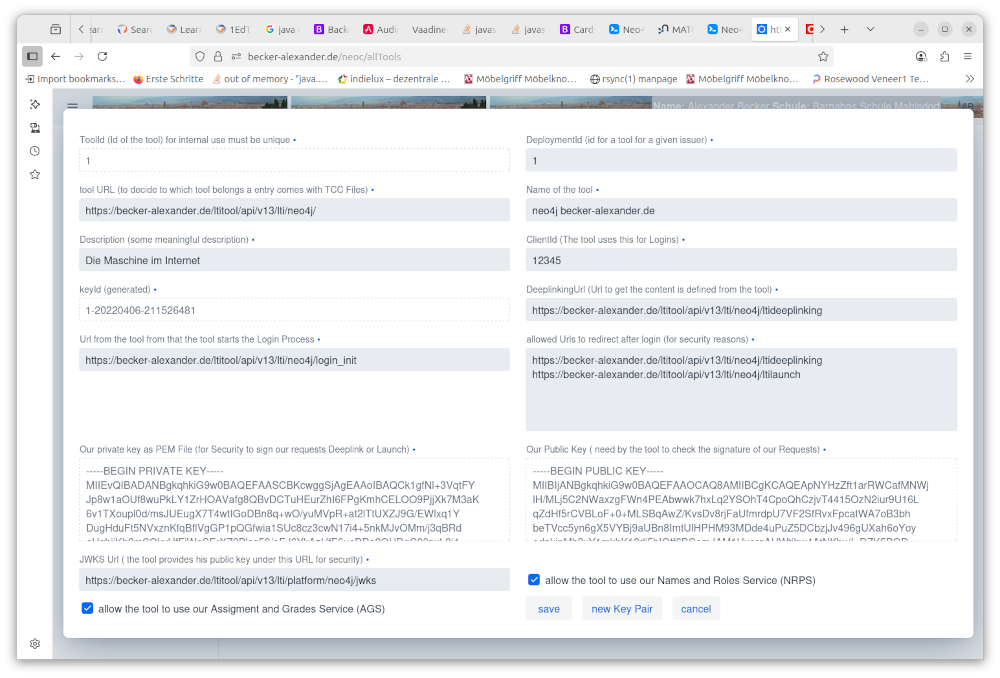
Far better and less 'error-prone' is dynamic registration.
courses and tasks
create a course for a learninggroup
Creating a course can be done in the UI. That is a small description, what the course is about. A Course has also a start- and a end date. (see also course view student)
create tasks in that course
-
TYPE with an url (calls simply the url)
-
TYPE as LTI Launch (returns grades if the tool provider offers grades) for LTI Links you can use LTI deeplinking While you create a task, all students of the learning group will be assigned to the task you’re just creating. This assignment holds also the grades for an LTI launch.
Caution: This means, if you remove a assignment for a single task from a student or you remove the assignment of a student from a learninggroup, then the results of the task(s) will be lost, because the assignments will be removed
optional change task assignment for several tasks
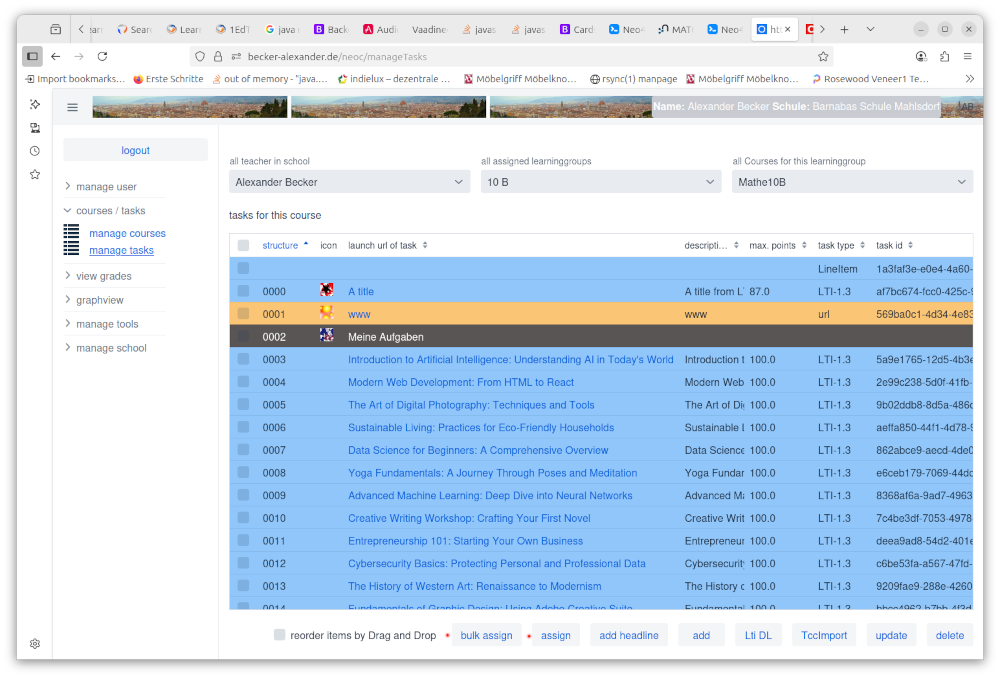
single assign
This can be done from the "tasks view" (via assign button) This can be done only for a single task. You will see 2 Tables. Left one contains all students of the learninggroup and the right table contains all students assigned to the task. The work is similar to "assign students to a learning group".
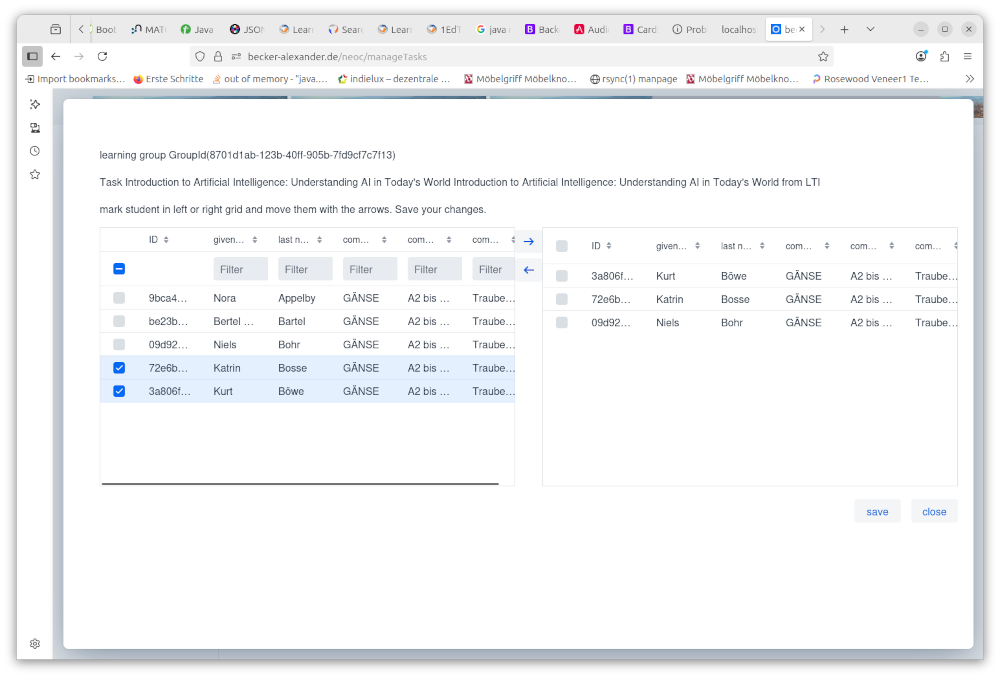
bulk assign ( assignes only selected learninggroup members) to the task.
This can be done from the "tasks view" (via the "bulk assign" button) Other students, which are not in the assign group (right table) will be not more assigned to that task after multi assign.
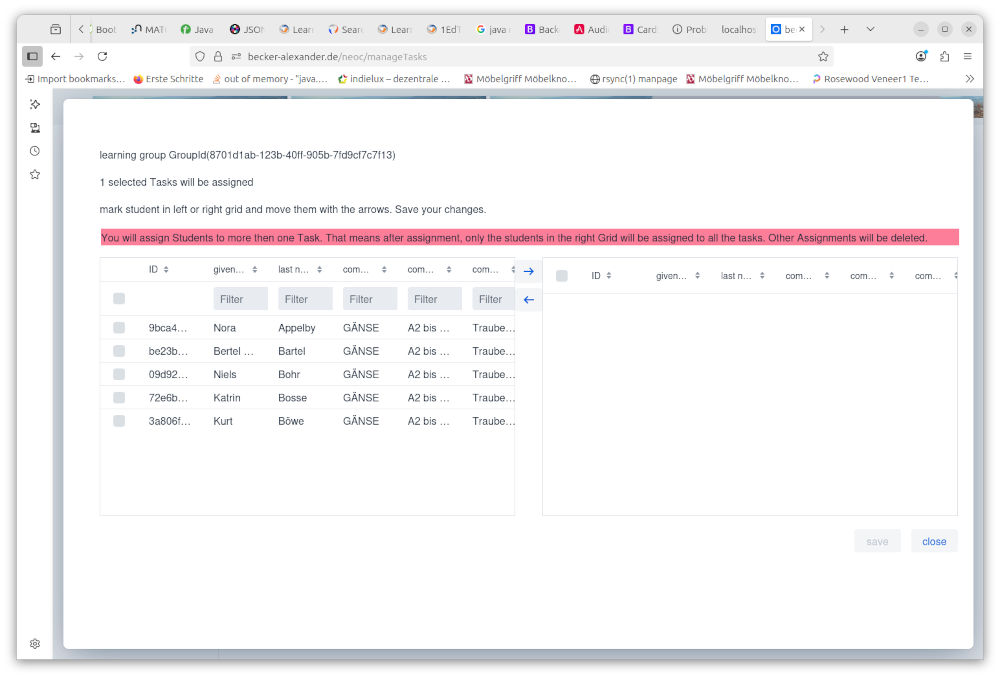
example bulk assign:
You have tasks to students studentA studentB studentC assigned.
You use multi assign with StudentA StudentB StudentD StudentF
After this assignment the tasks will be assigned to StudentA StudentB StudentD StudentF.
The results for studentC were removed because the assignment to the task was removed.
login as a student
Use one student you just created, you have to take care that the student is assigned to a task in a course. If the course has not started or the course has ended or there is no assignment for at minimum one task for the student for the course, then the student will not see the course in his course overview.
goto a course
click on a course
do a task
the task will be launched in a new tab. This tab has always the same tab name. That means,a second launch in the same browser will be started in the same tab (no matter if TYPE url or TYPE lti-launch).
see the grades
goto to the grades view , select a course and see the results.
finished
Congratulations, you have created and used your first course in Vaadineo.